Setting up vm-robot networking
The VM and the robot needs to be on the same network to allow the two ROS2 instances to comunicate, to do so, we need to modify the networking options of the VM. The following example will show how to setup the networking interfaces of the VM in a common scenario and can be considered a starting point for much complex ones.
The following example will consider a scenario in which the robot and the host machine are connected to the network 192.168.137.xxx, the host machine is connected via the network card "TP-LINK Gigabit Ethernet USB Adapter" with the ip 192.168.137.1. what we want is to share the TP-LINK Gigabit Ethernet USB Adapter with our VM so it can sit on the 192.168.137.xxx network where the robot is. In the example we assume that the network has a DHCP.
The first step to enable the network card sharing is to open the settings of our VM
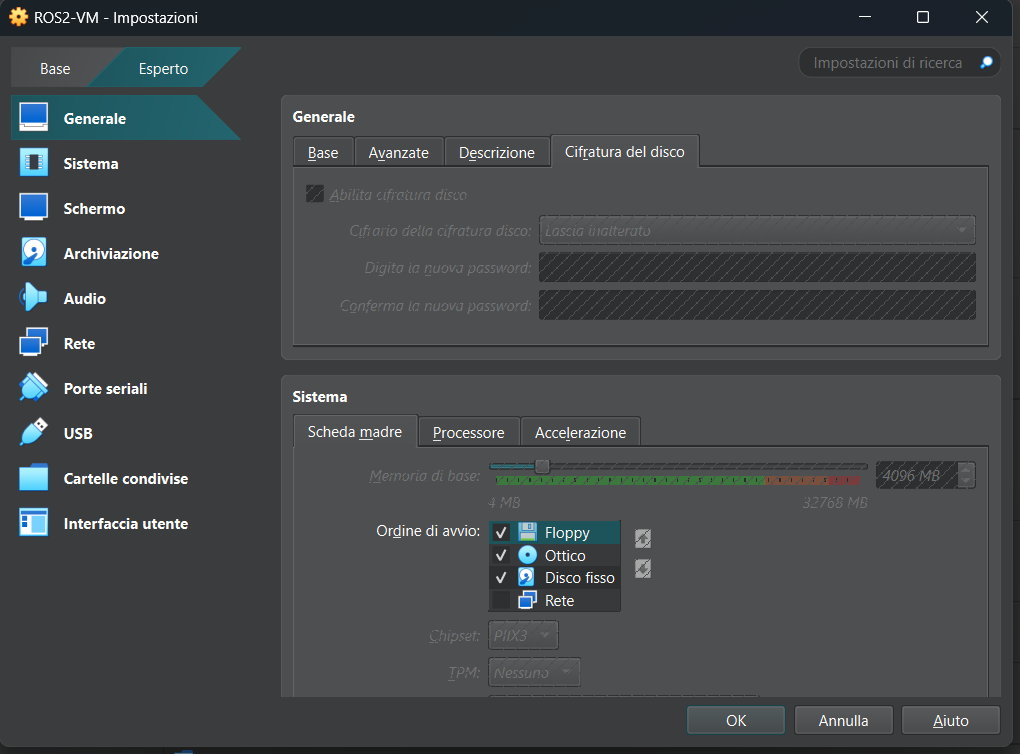
Next, we will need to open the Networking tab
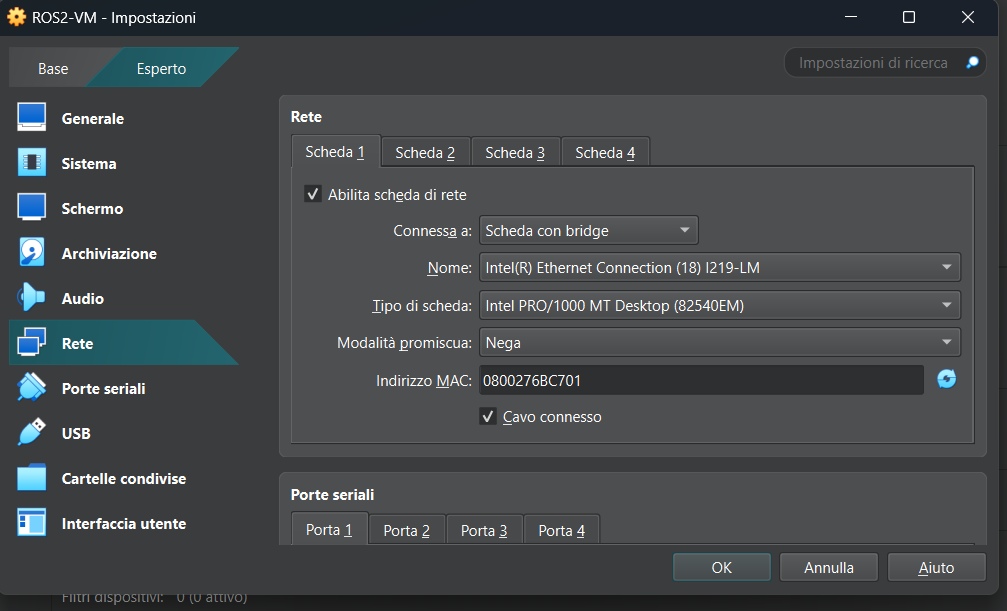
Then we will configure the network card to be bridged with another card from the host machine. we are intrested in the fields:
- Attached to: We need to set it to Bridged adapter
- Name: From this drop down menu we need to select the network card that is on the same network as the robot
For our example the configuration is:
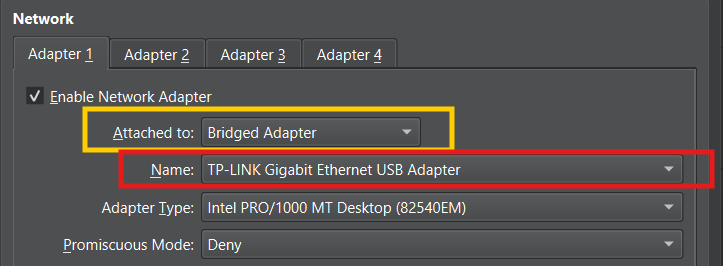
Once done we can check the network card from the ubuntu virtual machine to see if a correct ip address has been obtained by DHCP
raffy@raffy-ros2-vm:~$ ip addr
1: lo: <LOOPBACK,UP,LOWER_UP> mtu 65536 qdisc noqueue state UNKNOWN group default qlen 1000
    link/loopback 00:00:00:00:00:00 brd 00:00:00:00:00:00
    inet 127.0.0.1/8 scope host lo
       valid_lft forever preferred_lft forever
    inet6 ::1/128 scope host
       valid_lft forever preferred_lft forever
2: enp0s3: <BROADCAST,MULTICAST,UP,LOWER_UP> mtu 1500 qdisc fq_codel state UP group default qlen 1000
    link/ether 08:00:27:6b:c7:01 brd ff:ff:ff:ff:ff:ff
    inet 192.168.137.99/24 brd 192.168.137.255 scope global dynamic noprefixroute enp0s3
       valid_lft 604781sec preferred_lft 604781sec
    inet6 fe80::8058:866b:5680:7a5e/64 scope link noprefixroute
       valid_lft forever preferred_lft forever
As we can see in the example the virtual machine has received the ip 192.168.137.99
⚠ Warning
If DHCP is not enable on your network you will need to setup the ip address for the VM
⚠ Warning
If the network is not connected to internet the Virtual machine will not be able to access internt
A solution in this case is to use two different network card for the virtual machine one with internet and one connected to the same network as the robot.